
Current Emails workspace
The selected mailbox or queue on the left defines the active work context. Emails parked by the Architect flow under ManualAssignment stay visible here so GenEmails users can inspect, route, assign, and classify before normal ACD distribution resumes.
| Element | Behavior | Operational note |
|---|---|---|
| Queue or mailbox selector | Changes the live context for Current Emails and the related history tabs. | Only queues or mailboxes visible to the signed-in tenant user appear. |
| Current Emails list | Shows active email conversations waiting in the selected context. | These are the emails most users triage first. |
| Action buttons | Include operations such as Assign to Me, Assign to Agent, Assign to Skill, Send to Review Queue, Move To SPAM, Disconnect, and reply-related features where enabled. | Each action is filtered by GenEmails role, mapping health, and Genesys authorization. |
Message detail tabs
| Tab | What it shows | How it is used |
|---|---|---|
| Email content | The selected email body, sender and recipient context, inline image handling, and action icons for contact tags, pop-out view, forwarding, and tracking. | Used to inspect the message and perform message-specific follow-up without leaving the selected conversation. |
| Attachments | The attachment list, preview option, download option, and any blocked or unsupported state. | Used to inspect invoices, statements, screenshots, PDFs, spreadsheets, or other supporting files without leaving GenEmails. |
| Timeline | Conversation progression, message order, participant transitions, queue-related handling context, and the Queue Movement Diagram icon. | Used to understand how the email arrived, where it moved, who handled it, and whether review, SPAM, or wrap-up actions occurred. |
| Advanced | Normalized plus raw conversation metadata such as conversation IDs, queue IDs, headers, routing data, and diagnostic markers. | Used for troubleshooting, support tickets, and correlation with Genesys audit or API traces. |
Email Content icons
| Icon | Purpose | Behavior |
|---|---|---|
| Tags | Opens the sender tag editor for the selected email sender. | Tags are stored per tenant contact. Each contact can have up to three tags, and each tenant tag has a unique label and color. |
| Pop out | Opens the selected email in a wider modal. | The pop-out view gives more space for body content, remote-image controls, downloads, and attachment preview or download actions. |
| Forward | Opens the send email modal with forwarding content prepared. | The modal uses the configured SMTP sender as the read-only From address, fills the selected subject, adds forwarded-by details for the current agent, and includes original content. Attachments are included when Genesys allows them to be downloaded. |
| Track | Adds or removes the selected conversation from the signed-in user's tracked conversation list. | Tracked conversations are persistent per user. They can be found later from Custom Search using the Tracked Conversations filter. Removing the track mark removes that conversation from the tracked list. |
Sender tags
Sender tags let users maintain a lightweight tenant contact database. A contact record stores the sender full name when available, the sender email address, and up to three tags. Tags can be reused across contacts, but within a tenant each tag label and tag color must be unique.
When a user removes the final tag from a contact, the contact entry is deleted. When the last contact using a tag is deleted or no longer uses that tag, GenEmails automatically removes the unused tenant tag to keep the tag list clean.
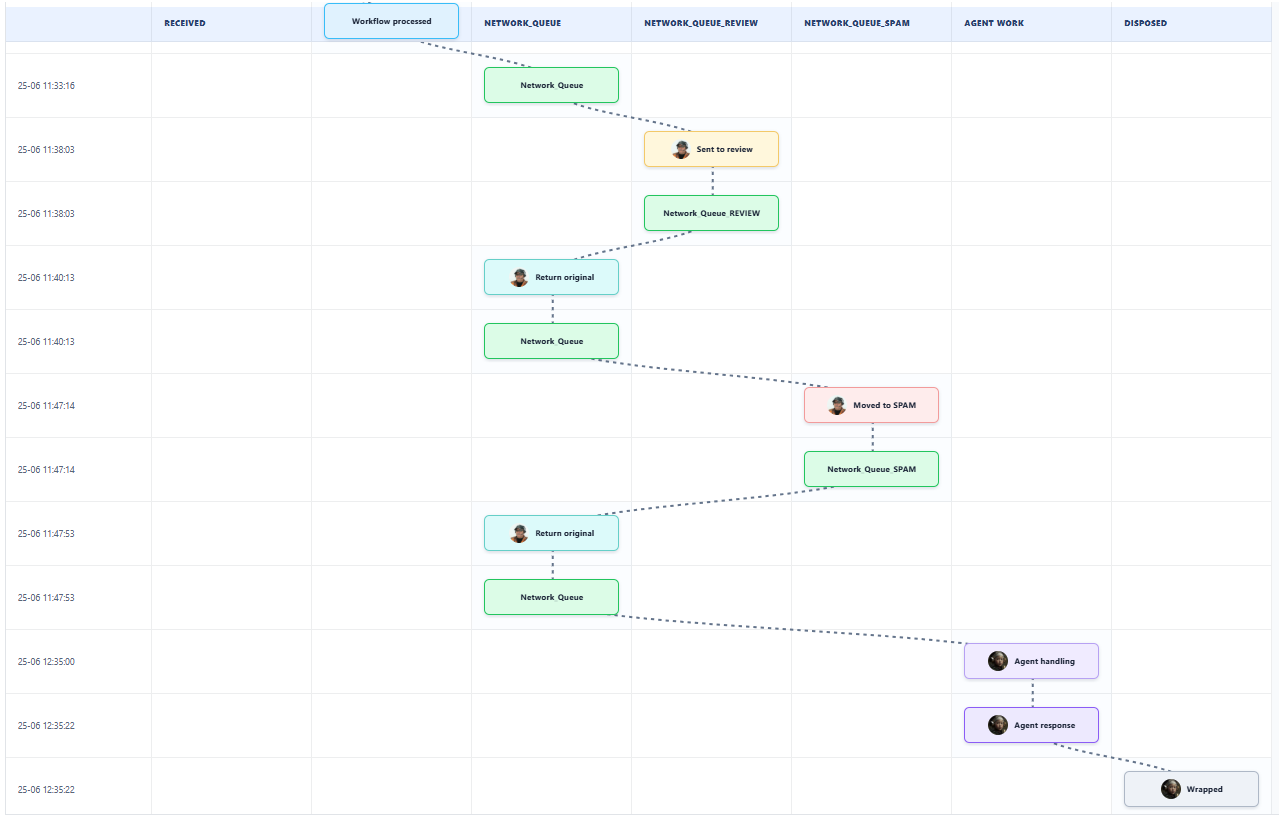
Timeline Queue Movement Diagram
The Timeline tab includes a Queue Movement Diagram icon. The diagram converts the selected conversation timeline into a queue and status path so users can see when the email entered the mailbox, moved through workflow, entered queues, went to Review or SPAM, returned to the original queue, reached Agent Work, and was wrapped or disposed.
The vertical rows are ordered by the time each event occurred. The horizontal columns represent queue names or status phases such as Received, workflow processing, Review Queue, SPAM Queue, Agent Work, and Disposed. Dashed connectors show the movement path between events. Cards use different colors for different event types, and hovering a card shows details such as agent, queue, duration, reason, flow, or wrap-up when those values are available.
The Email detail tabs are controlled by matching visibility flags in Access Control. Those are GenEmails UI gates only. Genesys read permissions still determine whether the underlying data can be loaded.